 Blake BlackshearandClaude Opus 5.5
2b0a69c028
Blake BlackshearandClaude Opus 5.5
2b0a69c028
Brings the go2rtc security fixes from #24658 to dev. Dev-specific changes
in the merge:
- frigate/config/env.py stays deleted; the environment_vars protection for
  GO2RTC_ALLOW_ARBITRARY_EXEC moves to apply_config_env_vars in
  frigate/util/env.py, so the value never reaches os.environ
- services.py imports substitute_frigate_vars from frigate.util.env and
  maps UnknownVariableError to the unknown variable message
- go2rtc stream tests patch dev's import-time exec override snapshot and
  its FRIGATE_* variable sources
- test_http_media.py keeps dev's _insert_recording helper; the one added
  on master replaced it and broke the dev tests

Co-Authored-By: Claude Opus 5.5 <noreply@anthropic.com>
41 KiB
id, title
| id | title |
|---|---|
| installation | Installation |
import ShmCalculator from '@site/src/components/ShmCalculator' import DockerComposeGenerator from '@site/src/components/DockerComposeGenerator' import Tabs from '@theme/Tabs'; import TabItem from '@theme/TabItem';
Frigate is a Docker container that can be run on any Docker host including as a Home Assistant App. Note that the Home Assistant App is not the same thing as the integration. The integration is required to integrate Frigate into Home Assistant, whether you are running Frigate as a standalone Docker container or as a Home Assistant App.
:::tip
If you already have Frigate installed as a Home Assistant App, check out the getting started guide to configure Frigate.
:::
Dependencies
MQTT broker (optional) - An MQTT broker is optional with Frigate, but is required for the Home Assistant integration. If using Home Assistant, Frigate and Home Assistant must be connected to the same MQTT broker.
Preparing your hardware
Operating System
Frigate runs best with Docker installed on bare metal Debian-based distributions. For ideal performance, Frigate needs low overhead access to underlying hardware for the Coral and GPU devices. Running Frigate in a VM on top of Proxmox, ESXi, Virtualbox, etc. is not recommended though some users have had success with Proxmox.
Windows is not officially supported, but some users have had success getting it to run under WSL or Virtualbox. Getting the GPU and/or Coral devices properly passed to Frigate may be difficult or impossible. Search previous discussions or issues for help.
Storage
Frigate uses the following locations for read/write operations in the container. Docker volume mappings can be used to map these to any location on your host machine.
/config: Used to store the Frigate config file and sqlite database. You will also see a few files alongside the database file while Frigate is running./media/frigate/clips: Used for snapshot storage. In the future, it will likely be renamed fromclipstosnapshots. The file structure here cannot be modified and isn't intended to be browsed or managed manually./media/frigate/recordings: Internal system storage for recording segments. The file structure here cannot be modified and isn't intended to be browsed or managed manually./media/frigate/exports: Storage for clips and timelapses that have been exported via the WebUI or API./tmp/cache: Cache location for recording segments. Initial recordings are written here before being checked and converted to mp4 and moved to the recordings folder. Segments generated via theclip.mp4endpoints are also concatenated and processed here. It is recommended to use atmpfsmount for this./dev/shm: Internal cache for raw decoded frames in shared memory. It is not recommended to modify this directory or map it with docker. The minimum size is impacted by theshm-sizecalculations below.
Ports
The following ports are used by Frigate and can be mapped via docker as required.
| Port | Description |
|---|---|
8971 |
Authenticated UI and API access without TLS. Reverse proxies should use this port. |
5000 |
Internal unauthenticated UI and API access. Access to this port should be limited. Intended to be used within the docker network for services that integrate with Frigate. |
8554 |
RTSP restreaming. By default, these streams are unauthenticated. Authentication can be configured in go2rtc section of config. |
8555 |
WebRTC connections for cameras with two-way talk support. |
Common Docker Compose storage configurations
Writing to a local disk or external USB drive:
services:
  frigate:
    ...
    volumes:
      - /path/to/your/config:/config
      - /path/to/your/storage:/media/frigate
      - type: tmpfs # 1GB In-memory filesystem for recording segment storage
        target: /tmp/cache
        tmpfs:
          size: 1000000000
    ...
:::warning
Users of the Snapcraft build of Docker cannot use storage locations outside your $HOME folder.
:::
Calculating required shm-size
Frigate utilizes shared memory to store frames during processing. The default shm-size provided by Docker is 64MB.
Frigate needs about 210MB for 2 cameras detecting at 720p. If Frigate is exiting with "Bus error" messages, it is likely because you have too many high resolution cameras and you need to specify a higher shm size, using --shm-size (or service.shm_size in Docker Compose). If raising the shm size does not help, check your process and file limits as well.
The Frigate container also stores logs and an nginx cache in shm, which can take up to 50MB. The calculator below includes this, along with room for 2 cameras added while Frigate is running. Its result holds about 25 frames per camera, a little above the 20 frame minimum Frigate warns below. Frigate keeps up to 50 when there is room, which gives slow processes more time to read each frame.
The shm size cannot be set per container for Home Assistant Apps. However, this is probably not required since by default Home Assistant Supervisor allocates /dev/shm with half the size of your total memory. If your machine has 8GB of memory, chances are that Frigate will have access to up to 4GB without any additional configuration.
Process and file limits
Frigate runs many processes and opens a number of shared memory files. Installs with a large number of cameras can exceed the default limits your container runtime applies.
Hitting the PID limit logs RuntimeError: can't start new thread, often followed by a "Bus error" that makes it look like an shm sizing problem. Compare the current count against the max from inside the container:
cat /sys/fs/cgroup/pids.current
cat /sys/fs/cgroup/pids.max
If these are close, raise the limit with --pids-limit (or service.pids_limit in Docker Compose).
Running out of file descriptors logs OSError: [Errno 24] Too many open files. Raise the limit in Docker Compose:
services:
  frigate:
    ulimits:
      nofile:
        soft: 65535
        hard: 65535
Extra Steps for Specific Hardware
The following sections contain additional setup steps that are only required if you are using specific hardware. If you are not using any of these hardware types, you can skip to the Docker installation section.
Raspberry Pi 3/4
By default, the Raspberry Pi limits the amount of memory available to the GPU. In order to use ffmpeg hardware acceleration, you must increase the available memory by setting gpu_mem to the maximum recommended value in config.txt as described in the official docs.
Additionally, the USB Coral draws a considerable amount of power. If using any other USB devices such as an SSD, you will experience instability due to the Pi not providing enough power to USB devices. You will need to purchase an external USB hub with its own power supply. Some have reported success with this (affiliate link).
Hailo-8
The Hailo-8, Hailo-8L and Hailo-8R AI accelerators are available in both M.2 and HAT form factors for the Raspberry Pi. The M.2 version typically connects to a carrier board for PCIe, which then interfaces with the Raspberry Pi 5 as part of the AI Kit. The HAT version can be mounted directly onto compatible Raspberry Pi models. Both form factors have been successfully tested on x86 platforms as well, making them versatile options for various computing environments.
The HailoRT runtime is not part of the Frigate image; Frigate downloads and installs it at first start once a Hailo detector is configured. Containers without internet access can provide the files themselves, see Detector runtimes.
Installation
:::warning
On Raspberry Pi OS Bookworm, the kernel includes an older version of the Hailo driver that is incompatible with Frigate. You must follow the installation steps below to install the correct driver version, and you must disable the built-in kernel driver as described in step 1.
On Raspberry Pi OS Trixie, the Hailo driver is no longer shipped with the kernel. It is installed via DKMS, and the conflict described below does not apply. You can simply run the installation script.
:::
-
Disable the built-in Hailo driver (Raspberry Pi Bookworm OS only):
:::note
If you are not using a Raspberry Pi with Bookworm OS, skip this step and proceed directly to step 2.
If you are using Raspberry Pi with Trixie OS, also skip this step and proceed directly to step 2.
:::
First, check if the driver is currently loaded:
lsmod | grep hailoIf it shows
hailo_pci, unload it:sudo modprobe -r hailo_pciThen locate the built-in kernel driver and rename it so it cannot be loaded. Renaming allows the original driver to be restored later if needed. First, locate the currently installed kernel module:
modinfo -n hailo_pciExample output:
/lib/modules/6.6.31+rpt-rpi-2712/kernel/drivers/media/pci/hailo/hailo_pci.ko.xzSave the module path to a variable:
BUILTIN=$(modinfo -n hailo_pci)And rename the module by appending .bak:
sudo mv "$BUILTIN" "${BUILTIN}.bak"Now refresh the kernel module map so the system recognizes the change:
sudo depmod -aReboot your Raspberry Pi:
sudo rebootAfter rebooting, verify the built-in driver is not loaded:
lsmod | grep hailoThis command should return no results.
-
Run the installation script:
Download the installation script:
wget https://raw.githubusercontent.com/blakeblackshear/frigate/dev/docker/hailo8l/user_installation.shMake it executable:
sudo chmod +x user_installation.shRun the script:
./user_installation.shThe script will:
- Install necessary build dependencies
- Clone and build the Hailo driver from the official repository
- Install the driver
- Download and install the required firmware
- Set up udev rules
-
Reboot your system:
After the script completes successfully, reboot to load the firmware:
sudo reboot -
Verify the installation:
After rebooting, verify that the Hailo device is available:
ls -l /dev/hailo0You should see the device listed. You can also verify the driver is loaded:
lsmod | grep hailo_pciVerify the driver version:
cat /sys/module/hailo_pci/versionVerify that the firmware was installed correctly:
ls -l /lib/firmware/hailo/hailo8_fw.binOptional: Fix PCIe descriptor page size error
If you encounter the following error:
[HailoRT] [error] CHECK failed - max_desc_page_size given 16384 is bigger than hw max desc page size 4096Create a configuration file to force the correct descriptor page size:
echo 'options hailo_pci force_desc_page_size=4096' | sudo tee /etc/modprobe.d/hailo_pci.confand reboot:
sudo reboot
Setup
To set up Frigate, follow the default installation instructions, for example: ghcr.io/blakeblackshear/frigate:stable
Next, grant Docker permissions to access your hardware by adding the following lines to your docker-compose.yml file:
devices:
  - /dev/hailo0
If you are using docker run, add this option to your command --device /dev/hailo0
Configuration
Finally, configure hardware object detection to complete the setup.
MemryX MX3
The MemryX MX3 Accelerator is available in the M.2 2280 form factor (like an NVMe SSD), and supports a variety of configurations:
- x86 (Intel/AMD) PCs
- Raspberry Pi 5
- Orange Pi 5 Plus/Max
- Multi-M.2 PCIe carrier cards
Configuration
Installation
To get started with MX3 hardware setup for your system, refer to the Hardware Setup Guide.
The MemryX SDK used inside the container is not part of the Frigate image; Frigate downloads and installs it at first start once a MemryX detector is configured. Containers without internet access can provide the file themselves, see Detector runtimes. The host side driver still has to be installed as described below.
Then follow these steps for installing the correct driver/runtime configuration:
- Copy or download this script.
- Ensure it has execution permissions with
sudo chmod +x user_installation.sh - Run the script with
./user_installation.sh - Restart your computer to complete driver installation.
:::warning
For manual setup, use MemryX SDK 2.1 only. Other SDK versions are not supported for this setup. See the SDK 2.1 documentation
:::
Setup
To set up Frigate, follow the default installation instructions, for example: ghcr.io/blakeblackshear/frigate:stable
Next, grant Docker permissions to access your hardware by adding the following lines to your docker-compose.yml file:
devices:
  - /dev/memx0
During configuration, you must run Docker in privileged mode and ensure the container can access the max-manager.
In your docker-compose.yml, also add:
privileged: true

volumes:
  - /run/mxa_manager:/run/mxa_manager
If you can't use Docker Compose, you can run the container with something similar to this:
  docker run -d \
    --name frigate-memx \
    --restart=unless-stopped \
    --mount type=tmpfs,target=/tmp/cache,tmpfs-size=1000000000 \
    --shm-size=256m \
    -v /path/to/your/storage:/media/frigate \
    -v /path/to/your/config:/config \
    -v /etc/localtime:/etc/localtime:ro \
    -v /run/mxa_manager:/run/mxa_manager \
    -e FRIGATE_RTSP_PASSWORD='password' \
    --privileged=true \
    -p 8971:8971 \
    -p 8554:8554 \
    -p 5000:5000 \
    -p 8555:8555/tcp \
    -p 8555:8555/udp \
    --device /dev/memx0 \
    ghcr.io/blakeblackshear/frigate:stable
Configuration
Finally, configure hardware object detection to complete the setup.
DEEPX NPU
The DEEPX NPU is available in two form factors, and Frigate supports both:
- DX-M1 in the M.2 2280 form factor (like an NVMe SSD), for x86 (Intel/AMD) PCs, the Raspberry Pi 5, and other ARM SBCs with an exposed PCIe M.2 slot.
- DX-M1M on the Sixfab AI HAT+, a HAT+ board that connects to the Raspberry Pi 5 over PCIe Gen 3 x1.
Both present the NPU through the same PCIe driver and DX-RT runtime, so the setup below and the detector configuration are identical for either one. Nothing needs to change when moving between them.
DEEPX NPU support in Frigate is developed and maintained by Sixfab.
Versions
A DEEPX install has several separately versioned pieces, and they all have to agree. The driver, the runtime, and the daemon live on the Docker host; Frigate itself carries only the Python bindings, which it downloads on first start:
| Component | Version | Installed on | Installed by |
|---|---|---|---|
| Kernel driver | v2.6.0 |
Host | user_installation.sh |
| DX-RT runtime | v3.4.0 |
Host | user_installation.sh |
| NPU firmware | v2.7.4 |
The module | Flashed from the host |
| DX-RT bindings | v3.4.0 |
Frigate | Downloaded at first start |
:::warning
A version mismatch does not produce a startup error. It typically shows up as inference requests that are accepted but never return a result, so detections simply stop appearing while Frigate looks healthy. If that happens after a Frigate upgrade, check every version in the table before anything else.
:::
The installation script installs the DX-RT runtime on the host and enables dxrt.service, so the daemon starts at boot and any other program on the host can share the NPU with Frigate. Check the firmware version with dxrt-cli --status and update the module if it does not match the table above.
Installation
The DEEPX kernel driver must be installed on the host rather than in the container, because containers share the host kernel and cannot load kernel modules. Installing it creates the /dev/dxrt* device nodes that are passed through to Frigate. The same script installs the DX-RT runtime and enables dxrt.service, the daemon that owns the NPU and hands work to it on behalf of Frigate and anything else on the host.
- Copy or download this script.
- Ensure it has execution permissions with
sudo chmod +x user_installation.sh - Run the script with
./user_installation.sh - Restart your computer to complete driver installation.
Confirm the NPU is visible before continuing:
ls /dev/dxrt*
Then confirm the daemon is running and listening in /run/dxrt:
systemctl is-active dxrt.service
ls /run/dxrt/
Setup
To set up Frigate, follow the default installation instructions, for example: ghcr.io/blakeblackshear/frigate:stable
Docker configuration
Frigate needs the NPU device node and the directory holding the daemon's socket:
services:
  frigate:
    devices:
      - /dev/dxrt0:/dev/dxrt0
    volumes:
      - /run/dxrt:/run/dxrt
If you can't use Docker Compose, add --device /dev/dxrt0:/dev/dxrt0 -v /run/dxrt:/run/dxrt to your docker run command.
Add one --device per NPU, contiguously from /dev/dxrt0, since the client stops enumerating at the first gap.
The installation script configures dxrt.service to place its socket in /run/dxrt through a systemd drop-in. Mounting the directory rather than the socket file means the container sees the new socket after dxrt.service is restarted, rather than holding on to a deleted one.
dxrtd listens on an abstract socket as well, but that one does not cross into a container, so Frigate names the filesystem socket through DXRT_DYNAMIC_IPC_ENDPOINT on your behalf. Set that variable on the container yourself only if the daemon listens somewhere else, which means you also set it for dxrtd through its own systemd drop-in. The script writes /etc/systemd/system/dxrt.service.d/frigate.conf for exactly that, and has dxrt.service link the socket to /tmp/dxrt_dynamic_ipc.sock when it starts, so the host's own dxrt-cli and dxtop keep finding it at the default path they fall back to.
:::note
The DX-RT client exits when dxrt.service stops, so restart the Frigate container after restarting dxrt.service.
:::
The device node is needed as well as the socket, because the client opens the NPU directly even though the daemon arbitrates access. Without it, inference fails with Device not found.
/dev/shm does not need sharing.
The DX-RT python bindings are not shipped in the Frigate image. Frigate downloads them on first start when a DEEPX detector is configured, and caches them under /config.
Configuration
Finally, configure hardware object detection to complete the setup.
Rockchip platform
Make sure that you use a linux distribution that comes with the rockchip BSP kernel 5.10 or 6.1 and necessary drivers (especially rkvdec2 and rknpu). To check, enter the following commands:
$ uname -r
5.10.xxx-rockchip # or 6.1.xxx; the -rockchip suffix is important
$ ls /dev/dri
by-path  card0  card1  renderD128  renderD129 # should list renderD128 (VPU) and renderD129 (NPU)
$ sudo cat /sys/kernel/debug/rknpu/version
RKNPU driver: v0.9.2 # or later version
I recommend Armbian, if your board is supported.
Setup
Follow Frigate's default installation instructions, but use a docker image with -rk suffix for example ghcr.io/blakeblackshear/frigate:stable-rk.
Next, you need to grant docker permissions to access your hardware:
- During the configuration process, you should run docker in privileged mode to avoid any errors due to insufficient permissions. To do so, add
privileged: trueto yourdocker-compose.ymlfile or the--privilegedflag to your docker run command. - After everything works, you should only grant necessary permissions to increase security. Disable the privileged mode and add the lines below to your
docker-compose.ymlfile:
security_opt:
  - apparmor=unconfined
  - systempaths=unconfined
devices:
  - /dev/dri
  - /dev/dma_heap
  - /dev/rga
  - /dev/mpp_service
volumes:
  - /sys/:/sys/:ro
or add these options to your docker run command:
--security-opt systempaths=unconfined \
--security-opt apparmor=unconfined \
--device /dev/dri \
--device /dev/dma_heap \
--device /dev/rga \
--device /dev/mpp_service \
--volume /sys/:/sys/:ro
Configuration
Next, you should configure hardware object detection and hardware video processing.
Synaptics
- SL1680
Setup
Follow Frigate's default installation instructions, but use a docker image with -synaptics suffix for example ghcr.io/blakeblackshear/frigate:stable-synaptics.
Next, you need to grant docker permissions to access your hardware:
- During the configuration process, you should run docker in privileged mode to avoid any errors due to insufficient permissions. To do so, add
privileged: trueto yourdocker-compose.ymlfile or the--privilegedflag to your docker run command.
devices:
  - /dev/synap
  - /dev/video0
  - /dev/video1
or add these options to your docker run command:
--device /dev/synap \
--device /dev/video0 \
--device /dev/video1
Configuration
Next, you should configure hardware object detection and hardware video processing.
AXERA
AXERA accelerators are available in an M.2 form factor, compatible with both Raspberry Pi and Orange Pi. This form factor has also been successfully tested on x86 platforms, making it a versatile choice for various computing environments.
Installation
Using AXERA accelerators requires the installation of the AXCL driver. We provide a convenient Linux script to complete this installation.
Follow these steps for installation:
- Copy or download this script.
- Ensure it has execution permissions with
sudo chmod +x user_installation.sh - Run the script with
./user_installation.sh
Setup
To set up Frigate, follow the default installation instructions, for example: ghcr.io/blakeblackshear/frigate:stable
The AXEngine python package is not part of the Frigate image; Frigate downloads and installs it at first start once an AXEngine detector is configured. Containers without internet access can provide the file themselves, see Detector runtimes.
Next, grant Docker permissions to access your hardware by adding the following lines to your docker-compose.yml file:
devices:
  - /dev/axcl_host
  - /dev/ax_mmb_dev
  - /dev/msg_userdev
volumes:
  - /usr/bin/axcl:/usr/bin/axcl
  - /usr/lib/axcl:/usr/lib/axcl
If you are using docker run, add this option to your command --device /dev/axcl_host --device /dev/ax_mmb_dev --device /dev/msg_userdev
Configuration
Finally, configure hardware object detection to complete the setup.
Docker
Running through Docker with Docker Compose is the recommended install method.
Generate a Frigate Docker Compose configuration based on your hardware and requirements.
```yaml services: frigate: container_name: frigate # privileged: true # ONLY enable if your hardware requires it (see hardware-specific docs); prefer the device mappings below restart: unless-stopped stop_grace_period: 30s # allow enough time to shut down the various services image: ghcr.io/blakeblackshear/frigate:stable shm_size: "512mb" # update for your cameras based on calculation above devices: - /dev/bus/usb:/dev/bus/usb # Passes the USB Coral, needs to be modified for other versions - /dev/apex_0:/dev/apex_0 # Passes a PCIe Coral, follow driver instructions here https://github.com/jnicolson/gasket-builder - /dev/video11:/dev/video11 # For Raspberry Pi 4B - /dev/dri/renderD128:/dev/dri/renderD128 # AMD / Intel GPU, needs to be updated for your hardware - /dev/kfd:/dev/kfd # AMD Kernel Fusion Driver for ROCm - /dev/accel:/dev/accel # AMD / Intel NPU volumes: - /etc/localtime:/etc/localtime:ro - /path/to/your/config:/config - /path/to/your/storage:/media/frigate - type: tmpfs # 1GB In-memory filesystem for recording segment storage target: /tmp/cache tmpfs: size: 1000000000 ports: - "8971:8971" # - "5000:5000" # Internal unauthenticated access. Expose carefully. - "8554:8554" # RTSP feeds - "8555:8555/tcp" # WebRTC over tcp - "8555:8555/udp" # WebRTC over udp environment: FRIGATE_RTSP_PASSWORD: "password" ```Recommended security options
Frigate does not need elevated container privileges for most setups. The following hardens the container; add the devices/group_add entries your hardware requires (see the hardware acceleration docs):
services:
  frigate:
    ...
    security_opt:
      - no-new-privileges:true
    cap_drop:
      - ALL
:::note
telemetry.stats.network_bandwidth uses nethogs, which requires root with NET_ADMIN/NET_RAW capabilities. If you enable that stat, omit cap_drop: [ALL] or add cap_add: [NET_ADMIN, NET_RAW].
Platforms that genuinely require privileged: true (MemryX, some QNAP setups) are called out in their own sections and are unaffected by this guidance.
:::
Frigate's services run as an unprivileged user inside the container. See Running as a non-root user for the run modes, the one time volume ownership migration, what each accelerator needs on the host, and the hardened deployment layout with a read-only root filesystem.
Docker CLI
If you can't use Docker Compose, you can run the container with something similar to this:
docker run -d \
  --name frigate \
  --restart=unless-stopped \
  --stop-timeout 30 \
  --mount type=tmpfs,target=/tmp/cache,tmpfs-size=1000000000 \
  --device /dev/bus/usb:/dev/bus/usb \
  --device /dev/dri/renderD128 \
  --shm-size=64m \
  -v /path/to/your/storage:/media/frigate \
  -v /path/to/your/config:/config \
  -v /etc/localtime:/etc/localtime:ro \
  -e FRIGATE_RTSP_PASSWORD='password' \
  -p 8971:8971 \
  -p 8554:8554 \
  -p 8555:8555/tcp \
  -p 8555:8555/udp \
  ghcr.io/blakeblackshear/frigate:stable
The official docker image tags for the current stable version are:
stable- Standard Frigate build for amd64 & RPi Optimized Frigate build for arm64. This build includes support for Hailo devices as well.stable-standard-arm64- Standard Frigate build for arm64stable-tensorrt- Frigate build specific for amd64 devices running an Nvidia GPUstable-rocm- Frigate build for AMD GPUs
The community supported docker image tags for the current stable version are:
stable-tensorrt-jp6- Frigate build optimized for Nvidia Jetson devices running Jetpack 6stable-rk- Frigate build for SBCs with Rockchip SoC
Home Assistant App
:::warning
As of Home Assistant Operating System 10.2 and Home Assistant 2023.6 defining separate network storage for media is supported.
There are important limitations in HA OS to be aware of:
- Separate local storage for media is not yet supported by Home Assistant
- AMD GPUs are not supported because HA OS does not include the mesa driver.
- Intel NPUs are not supported because HA OS does not include the NPU firmware.
- Nvidia GPUs are not supported because HA Apps do not support the Nvidia runtime.
:::
:::tip
See the network storage guide for instructions to setup network storage for frigate.
:::
Home Assistant OS users can install via the App repository.
- In Home Assistant, navigate to Settings > Apps > App Store > Repositories
- Add
https://github.com/blakeblackshear/frigate-hass-addons - Install the desired variant of the Frigate App (see below)
- Setup your network configuration in the
Configurationtab - Start the App
- Use the Open Web UI button to access the Frigate UI, then click in the cog icon > Configuration editor and configure Frigate to your liking
App users who can't set container environment variables can put FRIGATE_ values in a secrets.yaml next to config.yml in /addon_configs/<addon_directory> instead. See secrets.yaml.
There are several variants of the App available:
| App Variant | Description |
|---|---|
| Frigate | Current release with protection mode on |
| Frigate (Full Access) | Current release with the option to disable protection mode |
| Frigate Beta | Beta release with protection mode on |
| Frigate Beta (Full Access) | Beta release with the option to disable protection mode |
If you are using hardware acceleration for ffmpeg, you may need to use the Full Access variant of the App. This is because the Frigate App runs in a container with limited access to the host system. The Full Access variant allows you to disable Protection mode and give Frigate full access to the host system.
You can also edit the Frigate configuration file through the VS Code App or similar. In that case, the configuration file will be at /addon_configs/<addon_directory>/config.yml, where <addon_directory> is specific to the variant of the Frigate App you are running. See the list of directories here.
Kubernetes
Use the helm chart.
Unraid
Many people have powerful enough NAS devices or home servers to also run docker. There is a Unraid Community App. To install make sure you have the community app plugin here. Then search for "Frigate" in the apps section within Unraid - you can see the online store here
Proxmox
According to Proxmox documentation it is recommended that you run application containers like Frigate inside a Proxmox QEMU VM. This will give you all the advantages of application containerization, while also providing the benefits that VMs offer, such as strong isolation from the host and the ability to live-migrate, which otherwise isn’t possible with containers. Ensure that ballooning is disabled, especially if you are passing through a GPU to the VM.
:::warning
If you choose to run Frigate via LXC in Proxmox the setup can be complex so be prepared to read the Proxmox and LXC documentation, Frigate does not officially support running inside of an LXC.
:::
Suggestions include:
- For Intel-based hardware acceleration, to allow access to the
/dev/dri/renderD128device with major number 226 and minor number 128, add the following lines to the/etc/pve/lxc/<id>.confLXC configuration:lxc.cgroup2.devices.allow: c 226:128 rwmlxc.mount.entry: /dev/dri/renderD128 dev/dri/renderD128 none bind,optional,create=file
- The LXC configuration will likely also need
features: fuse=1,nesting=1. This allows running a Docker container in an LXC container (nesting) and prevents duplicated files and wasted storage (fuse). - Successfully passing hardware devices through multiple levels of containerization (LXC then Docker) can be difficult. Many people make devices like
/dev/dri/renderD128world-readable in the host or run Frigate in a privileged LXC container. - The virtualization layer often introduces a sizable amount of overhead for communication with Coral devices, but not in all circumstances.
See the Proxmox LXC discussion for more general information.
ESXi
For details on running Frigate using ESXi, please see the instructions here.
If you're running Frigate on a rack mounted server and want to passthrough the Google Coral, read this.
Synology NAS on DSM 7
These settings were tested on DSM 7.1.1-42962 Update 4
General:
The Execute container using high privilege option needs to be enabled in order to give the frigate container the elevated privileges it may need.
The Enable auto-restart option can be enabled if you want the container to automatically restart whenever it improperly shuts down due to an error.
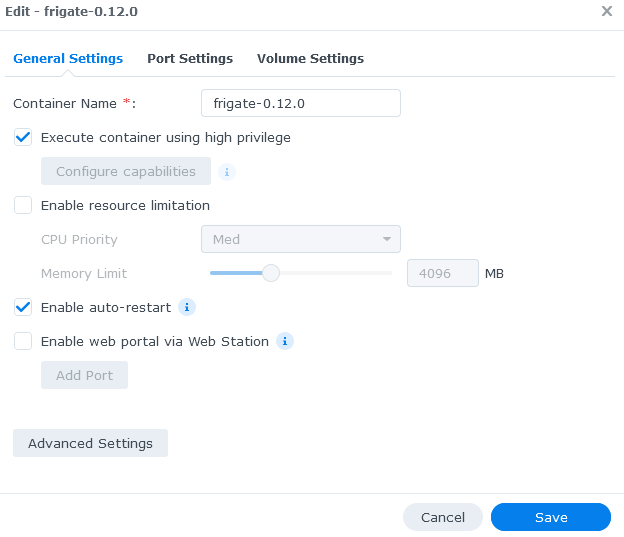
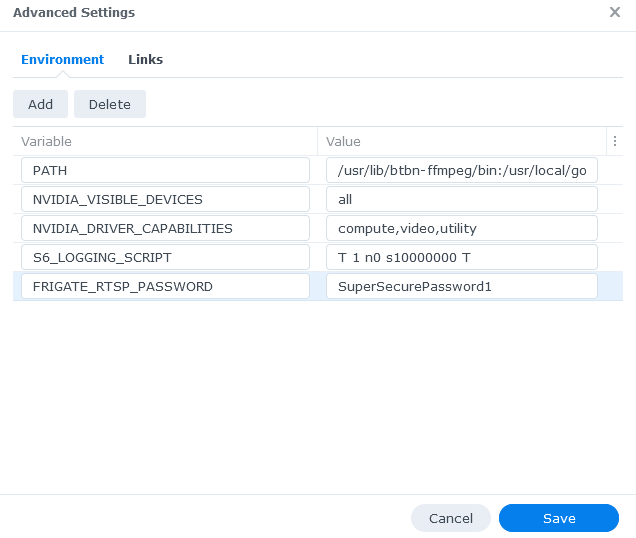
Advanced Settings:
If you want to use the password template feature, you should add the "FRIGATE_RTSP_PASSWORD" environment variable and set it to your preferred password under advanced settings. The rest of the environment variables should be left as default for now.
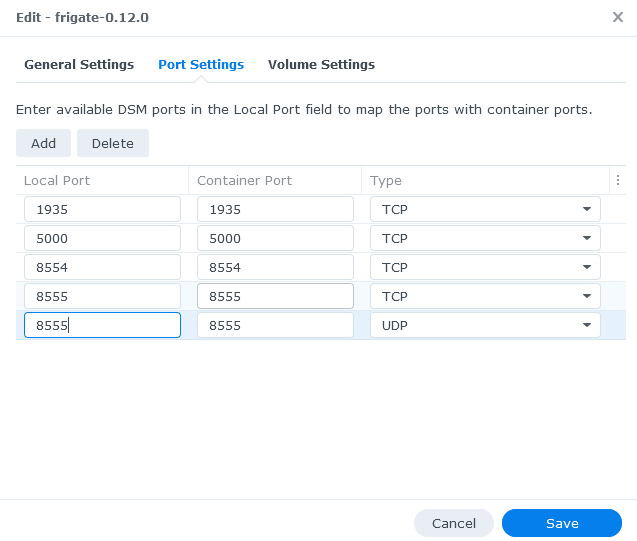
Port Settings:
The network mode should be set to bridge. You need to map the default frigate container ports to your local Synology NAS ports that you want to use to access Frigate.
There may be other services running on your NAS that are using the same ports that frigate uses. In that instance you can set the ports to auto or a specific port.
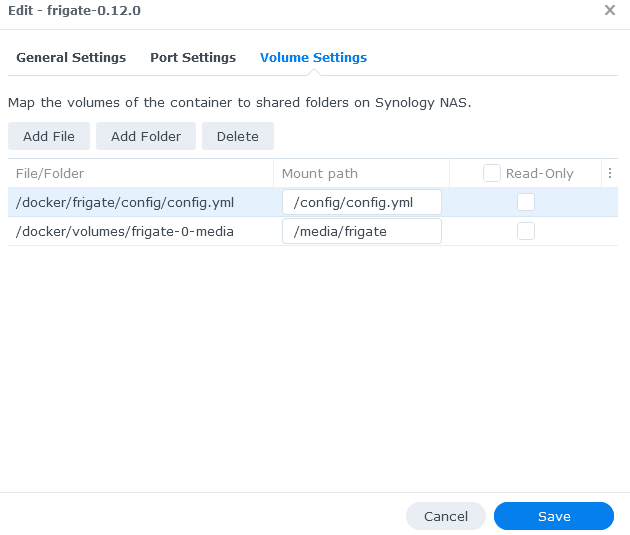
Volume Settings:
You need to configure 2 paths:
- The location of your config directory which will be different depending on your NAS folder structure e.g.
/docker/frigate/configwill mount to/configwithin the container. - The location on your NAS where the recordings will be saved this needs to be a folder e.g.
/docker/volumes/frigate-0-media
QNAP NAS
These instructions were tested on a QNAP with an Intel J3455 CPU and 16G RAM, running QTS 4.5.4.2117.
QNAP has a graphic tool named Container Station to install and manage docker containers. However, there are two limitations with Container Station that make it unsuitable to install Frigate:
- Container Station does not incorporate GitHub Container Registry (ghcr), which hosts Frigate docker image version 0.12.0 and above.
- Container Station uses default 64 Mb shared memory size (shm-size), and does not have a mechanism to adjust it. Frigate requires a larger shm-size to be able to work properly with more than two high resolution cameras.
Because of above limitations, the installation has to be done from command line. Here are the steps:
Preparation
- Install Container Station from QNAP App Center if it is not installed.
- Enable ssh on your QNAP (please do an Internet search on how to do this).
- Prepare Frigate config file, name it
config.yml. - Calculate shared memory size according to documentation.
- Find your time zone value from https://en.wikipedia.org/wiki/List_of_tz_database_time_zones
- ssh to QNAP.
Installation
Run the following commands to install Frigate (using stable version as example):
# Download Frigate image
docker pull ghcr.io/blakeblackshear/frigate:stable
# Create directory to host Frigate config file on QNAP file system.
# E.g., you can choose to create it under /share/Container.
mkdir -p /share/Container/frigate/config
# Copy the config file prepared in step 2 into the newly created config directory.
cp path/to/your/config/file /share/Container/frigate/config
# Create directory to host Frigate media files on QNAP file system.
# (if you have a surveillance disk, create media directory on the surveillance disk.
# Example command assumes share_vol2 is the surveillance drive
mkdir -p /share/share_vol2/frigate/media
# Create Frigate docker container.  Replace shm-size value with the value from preparation step 3.
# Also replace the time zone value for 'TZ' in the sample command.
# Example command will create a docker container that uses at most 2 CPUs and 4G RAM.
# You may need to add "--env=LIBVA_DRIVER_NAME=i965 \" to the following docker run command if you
# have certain CPU (e.g., J4125). See https://docs.frigate.video/configuration/hardware_acceleration_video.
docker run \
  --name=frigate \
  --shm-size=256m \
  --restart=unless-stopped \
  --env=TZ=America/New_York \
  --volume=/share/Container/frigate/config:/config:rw \
  --volume=/share/share_vol2/frigate/media:/media/frigate:rw \
  --network=bridge \
  --privileged \
  --workdir=/opt/frigate \
  -p 8971:8971 \
  -p 8554:8554 \
  -p 8555:8555 \
  -p 8555:8555/udp \
  --label='com.qnap.qcs.network.mode=nat' \
  --label='com.qnap.qcs.gpu=False' \
  --memory="4g" \
  --cpus="2" \
  --detach=true \
  -t \
  ghcr.io/blakeblackshear/frigate:stable
Log into QNAP, open Container Station. Frigate docker container should be listed under 'Overview' and running. Visit Frigate Web UI by clicking Frigate docker, and then clicking the URL shown at the top of the detail page.
macOS - Apple Silicon
:::warning
macOS uses port 5000 for its Airplay Receiver service. If you want to expose port 5000 in Frigate for local app and API access the port will need to be mapped to another port on the host e.g. 5001
Failure to remap port 5000 on the host will result in the WebUI and all API endpoints on port 5000 being unreachable, even if port 5000 is exposed correctly in Docker.
:::
Docker containers on macOS can be orchestrated by either Docker Desktop or OrbStack (native Swift app). The difference in inference speeds is negligible, however CPU, power consumption and container start times will be lower on OrbStack because it is a native Swift application.
To allow Frigate to use the Apple Silicon Neural Engine / Processing Unit (NPU) the host must be running Apple Silicon Detector on the host (outside Docker)
Docker Compose example
services:
  frigate:
    container_name: frigate
    image: ghcr.io/blakeblackshear/frigate:stable-standard-arm64
    restart: unless-stopped
    shm_size: "512mb" # update for your cameras based on calculation above
    volumes:
      - /etc/localtime:/etc/localtime:ro
      - /path/to/your/config:/config
      - /path/to/your/recordings:/recordings
    ports:
      - "8971:8971"
      # If exposing on macOS map to a different host port like 5001 or any other port with no conflicts
      # - "5001:5000" # Internal unauthenticated access. Expose carefully.
      - "8554:8554" # RTSP feeds
    extra_hosts:
      # This is very important
      # It allows frigate access to the NPU on Apple Silicon via Apple Silicon Detector
      - "host.docker.internal:host-gateway" # Required to talk to the NPU detector
    environment:
      - FRIGATE_RTSP_PASSWORD: "password"